Getting started
Quick start
Open a template, run an analysis and look at the results.
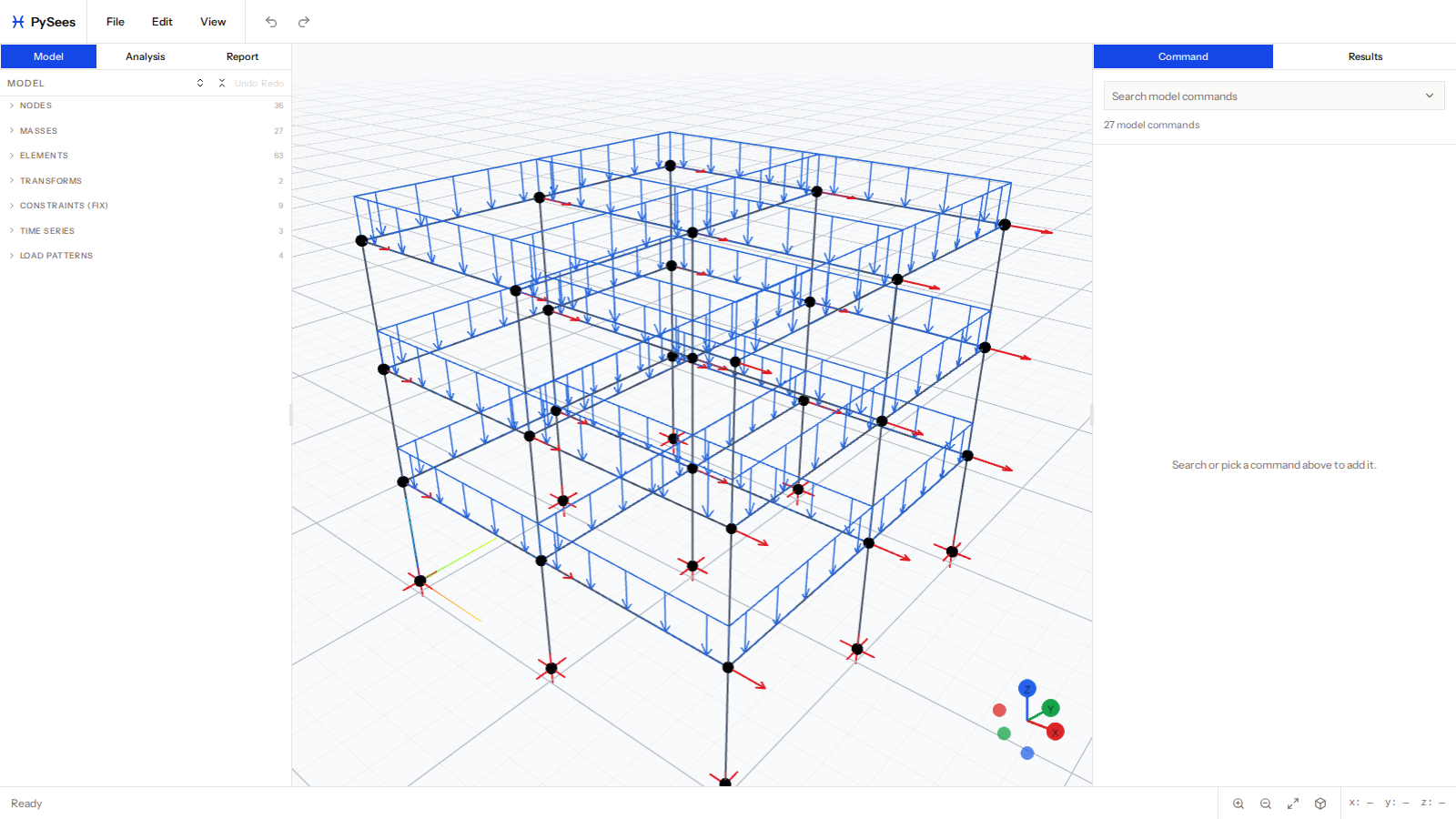
1. Create a model
Open Studio. When no model is loaded, the New model dialog opens with three options:
- New starts an empty model. You choose 2D or 3D, a unit system (or none), and the degrees of freedom per node.
- Load opens a project you saved earlier.
- Templates start from a ready-made model with a loading and a recorder already set up.
For a first run, pick the Cantilever Column or 2D Frame template and press Create Model.
2. Look around
Rotate with the middle mouse button, pan with the right button and zoom with the wheel. Click a node or element to select it. The left panel lists everything in the model, and the right panel shows its form. See Interface tour.
3. Run an analysis
Switch the left panel to the Analysis tab. The template already contains a recorder and a load analysis. Press Run. A status bar shows compiling, then the stage and step being solved.
If the run stops with an error, expand the diagnostics under the status bar. Each message names the item that Carapace could not handle.
4. Review the results
When the run is done, open the results panel in the viewport. Choose a Case and a Result such as the deformed shape or the bending moment diagram, then use the step controls to play back the response. The Results tab on the right lists the same data as tables.
5. Save or export
Use File > Save .py to save the whole project, or File > Export .tcl for a Tcl script. See Save and open projects.